Rodora Capture · Chrome & Dia
Found something good?
Keep it close.
The image. The source. The thought behind it. Bring what catches your eye into your Rodora library, right from your browser.
Requires Rodora running on your Mac.
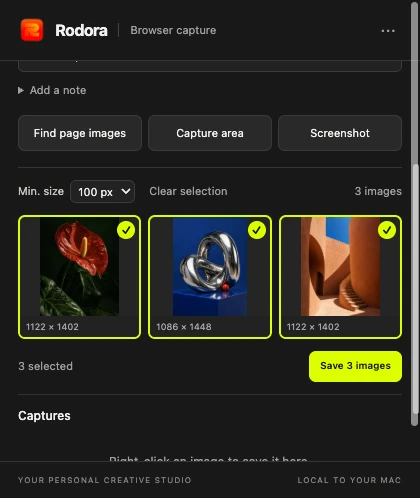
See it. Save it.
Right-click an image and choose Save image to Rodora. It lands in Bookmarks, with the page it came from.
Take your pick.
Find the images on a page, filter by size, and select the ones you want. Save up to 50 images at once.
Keep the whole thought.
Capture the visible page, or drag out just the area you need. Add tags and a note while the idea is fresh.
From a browser tab to your next project
Inspiration with
its context intact.
Every capture goes to Bookmarks in your Mac library. Keep the source page with the image, add tags, and bring the reference into a project when you are ready.
The extension connects directly to Rodora on the same Mac. No Rodora account or cloud library. If the app is closed, downloaded captures wait in the browser and retry when it is available.
Explore Rodora for Mac ↗A connection that stays on your Mac
Pair once.
Keep collecting.
The initial Chrome and Dia release uses a manual install. A Chrome Web Store listing is not available yet.
Add the extension.
Unzip the download. In Chrome or Dia, open Extensions, enable Developer mode, choose Load unpacked, and select the unzipped folder.
Connect to Rodora.
In the Mac app, open Install Browser Extension from the sidebar menu. Allow browser captures and copy your connection code. Paste it into the extension and select Connect.
Save your first reference.
Keep Rodora open. Right-click an image to save it, or open the extension to find page images and capture screenshots.
Your next idea is out there.
Rodora Capture · Chrome and Dia on Mac